老百姓的眼睛还是雪亮雪亮的:我觉得贪污就属于一种不爱国的表现!

我觉得贪污就属于一种不爱国的表现
自由人博客
老百姓的眼睛还是雪亮雪亮的:我觉得贪污就属于一种不爱国的表现!
我觉得贪污就属于一种不爱国的表现
今天电脑被人用过后由于U盘上中了exe病毒,而我的电脑一直是裸奔,所以自然而然的就中了U盘exe病毒,哎。。。
我的系统是Windows8.1,下面是我的电脑中了U盘exe病毒后的一些症状。
关于Chrome插件想必用Chrome浏览器的童鞋都很清楚,不过这标题写的说实话有点让人晕,要解释清楚标题,首先要了解一下Chrome插件的安装机制。
目前据我的了解,你可以用这3种方法安装Chrome插件
然而本文所介绍的插件安装方法并不属于上述任意一种,这就是下面要说的第4种安装方法
这内联安装我用一句话概括就是:你制作了一个插件并且已经在Chrome Web Store上发布,同时你还想让你网站内的用户也能够直接在你的网站上安装插件而不用再跑到Chrome Web Store那里。
如果还是不太明白的话可以看看下面人家官方的原文吧
Once you’ve published your app or extension, you may be wondering how users will find and install your app. For users who browse the Chrome Web Store and find your item, its a very easy one-click process to install it. However, if a user is already on your site, it can be cumbersome for them to complete the installation – they would need to navigate away from your site to the store, complete the install process, and then return.
As of Google Chrome 15, you can initiate app and extensions installations “inline” from your site. These apps and extensions are still hosted in the Chrome Web Store, but users no longer have to leave your site to install them.
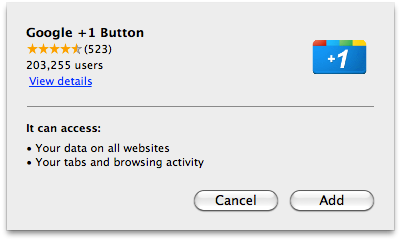
When users install the app, they will see an installation confirmation dialog similar to the one pictured on right. Just like the dialog displayed when installing directly from the Chrome Web Store, it lists all of the permissions that your app or extension is requesting. Additionally, this dialog includes the average Chrome Web Store rating and the number of users, giving users extra confidence about what they are about to install.
1、在页面的head内插入一个Chrome Web Store link
即将下面的代码插入页面<head></head>之间
<link rel=”chrome-webstore-item” href=”https://chrome.google.com/webstore/detail/itemID“>
itemID可以在打开一个插件的Chrome Web Store链接后找到,下面是我的查看源码Chrome插件的link
<link rel=”chrome-webstore-item” href=”https://chrome.google.com/webstore/detail/ggkbiakmiljlbbfhjajlpjgckcjanbab“>
2、触发内联安装
原文里面写的比较多,按照我的理解其实很简单也就是用JS写些判断代码,增强用户体验,下面是我个人的一些逻辑步骤
说了那么多,其实就是这段JS代码(需jQuery,另外上面所说的button已经在页面内插入,并且button的id为install-button)
(function($){
  var e = $('#install-button')
    ,originalText = e.html()
    ,itemURL = $('link[rel=chrome-webstore-item]').attr('href')
    ,isChrome = /chrom(e|ium)/.test(navigator.userAgent.toLowerCase());
  checkAndSetButton();
  e.click(function(){
    e.html('正在安装...').attr('disabled',true);
    chrome.webstore.install(
这些图标原本是用在zAlive主题的widget中的,现在共享出来,有需要的童鞋自己拿去用吧。PS:除个别图标懒的自己画线制作,别的都是矢量的。
包括的图标有:
Twitter、Facebook、Google Plus、YouTube、Linkedin、Pinterest、Myspace、deviantART、Flickr、SoundCloud、Vimeo、Tumblr、Orkut、VKontakte、Weibo(新浪微博)
预览图:

前一段在制作zAlive主题的时候需要一个带头像最新评论widget,网上Google了一大圈发现用的最多的是SQL,我也就直接拿来用了,而且神奇的是通过了WP的主题审核,但是后来在更新主题的时候怕不给通过,就索性找别的方法,也就是今天的主角,get_comments()
其实用get_comments()实现WordPress带头像最新评论zww很早就有一篇文章介绍,但是从2010年到现在WP已经升级了N多个版本,原来的参数有的已经失效,于是我就重新翻阅文档,用新版的get_comments实现WordPress带头像最新评论。
我写的这个可以指定获取的评论数,头像尺寸,评论字符数
function zAlive_recentComments($count,$avatarSize,$excerptLength){
    $comments;
    if( $count != 0 ){
      //新版的get_comments()不能直接获取指定类型的评论(比如会获取到pingback/trackback),+30是为了多获取一些评论,从而减少获取不到指定数量的评论的机会
      $comments = get_comments(
分享这个视频原因有两个,一个是拖延症很多人都有包括我自己,还有一个就是试试WordPress的embed视频插入(只需在发布文章的时候插入视频的纯文本网址即可)
其实我很早就知道最近WordPress要升级了,因为前几天在提交zAlive主题的时候在WordPress主题目录里面看到了Twenty Thirteen主题的ticket,当时还在纳闷这货是咋回事,等到第二天WordPress发布3.6更新后才恍然大悟(够迟钝,不过话说我当时也没多想嘛~